WHAT'S NEW?
Loading...
Showing posts with label WINDOWS. Show all posts
creating undeleteable files
In this tutorial you will learn cool and simple trick to Create an undeletable and unrenamable Folders In Windows operating system. Most of the Peoples are not aware that it is possible to create Undeletable, Unrenamable folder in windows without any software. To Test this concept just follow simple steps given below.

Try to make a new folder in windows & give it name con,aux, lpt1, lpt2, lpt3 up to lpt9. you won't be allowed to create folder with above mentioned names, Because they are reserved words in windows.

How To Create Undeletable And Unrenamable Folders ?

  1. Go to Start and then Click on Run
  2. Type cmd & hit enter (To open Command Prompt ).
  3. Remember you cannot create Undeletable & unrenamable folder in your root directory (i.e. where the windows is installed) That means you can't make this kind of folder in C: drive if you installed windows on C:
  4. Type D: or E: and hit enter
  5. Type md con\ and hit enter (md - make directory)
  6. You may use other words such as aux, lpt1, lpt2, lpt3 up to lpt9 instead of con in above step.
  7. Open that directory, you will see the folder created of name con.
  8. Try to delete that folder or rename that folder windows will show the error message.

How to delete that folder ?

It is not possible to delete that folder manually but you can delete this folder by another way mentioned below.
  1. Open Command Prompt
  2. Type D: ( if u created this type of folder in D: drive) & hit enter
  3. Type rd con\ (rd - remove directory)
  4. Open that directory and the folder will not appear because it is removed.

More Interesting Tricks And Hacks

facebook blocker
I had previously posted about Blocking Facebook on your computer but many users were facing difficulties doing that. So In this tutorial i will share with you guys an amazing programme or small little tool that will allow you block facebook on your computer easily in just few simple steps. So lets get started

How To Use Facebook Blocker ? 

 1. First download Facebook Blocker by Clicking Here
  2. Extract the file and right click on Facebook Blocker.exe and run it as administator (Important)
  3. Press 1 in order to  backup your host file to be on the safe side.
facebook blocker
  4. Now Press 2 to block facebook
  5. Its time to check if facebook is blocked or not to do that Press 5
  6. Hope this help you if you have any question leave a comment below.

More Computer Tricks & Tips

creating nameless folder
In this small tutorial i will show you a smilpe windows trick. Basically you can not make folder with no name on windows. This trick will allow you to make folder without any name. This trick works on any windows  operating system.


How To Make Nameless Folder

Before attempting this trick, try to make a folder with no name and you will fail to do so. This is what this trick will let you do. Below is screenshot of folder before and after doing this interesting trick.
creating nameless folder
  1. Make a Newfolder on desktop or where ever you want.
  2. Right click on this newly created folder and select Rename.
  3. Erase the text showing "New Folder".
  4. Now keep Pressing Alt (i.e alter key) and type 255. If you are on laptop then you need to enable your Num Lock and type from the highlighted number keys not from those below function keys.
  5. After that leave alt key and Press enter.
  6. Done you just created nameless folder.

Other Cool Windows Tricks

windows 7 god mode

In this tutorial i will show you to enable God Mode in Windows 7 and Windows Vista. By enabling God mode you can access all your windows setting from one folder and it makes really easy to access and change windows settings. This work 32 as well as 64 bit operating system. So lets enable God mode on your computer.

How to do it ?

  1. On your desktop right click and create a New Folder.
  2. Rename this folder to the code given below.

GodMode.{ED7BA470-8E54-465E-825C-99712043E01C}

  3. Done now double click on this folder and you will have access to all your windows operating system settings.

Video Tutorial On Enabling God Mode


More Intresting Tricks

vlc tricks
In this tutorial i will share a simple trick yet interesting trick i came across while surfing on the internet. I will call it VLC Inception trick. This trick is simple and works on windows xp as well as windows 7. If you know this trick then its great if you don't then lets dive into it.

How To Do This Trick ?

  1. Open Vlc Media Player.
  2. Then Press Cltr + N
  3. Now Type "Screen://" (without quotes)
  4. Click on Play and watch this simple little trick.

More Interesting Tricks

video wallpaper
Ever wanted to set cool videos as your computers Desktop Wallpaper, then you came to right place. Today in this post i will teach you how to set videos as your Desktop Wallpaper with a simple nice little trick and small tool or software that mostly every one has installed on their computer or laptop. This trick works on  Windows Xp as well as it works on windows 7. Go through below post to learn this simple trick.


How to set video as desktop wallpaper ?

   1. Open VLC Media Player. If you don't have it download it frome Here.
   2. Then Go to Tools > Preference Or press CTRL + P and Selecet Video from left panel
   3. Then Choose DirectX video output from output dropdown list
      as shown in below image .
Video wallpaper

   4. Save the changes ans restart VLC Media Player.
   5. Play any video you would like to set as your desktop wallpaper.
   6. Then click on Video and select DirectX Wallpaper from the dropdown list as show in below image.
Video wallpaper


   7. Now Minimize vlc player and you will see your video running on your desktop as wallpaper.
   8. If you want your default wallpaper back then uncheck DirectX Wallpaper from video dropdown list.
   9. Hope you like this simple trick share your thought about this trick in comment section.

You may also like to read


Isn't it cool to have great wallpaper for your desktop but it might be more fun to have amazing background images for your drives. Drives Background Image is a Windows freeware application that allows you to set a wallpaper for each disk drive on your computer. This program is very easy to use you only need to select wallpaper for your background, it also provide option to change icons of your drives, changing text color and it provide instant preview of your selected settings. But  keep in mind that Windows 7 users need administrator privileges while running this program, as the application attempts to modify the configuration of the local hard drives. Its pretty nice program for window customization and every one  should try this tool. Follow below steps to download and learn to use this program.


   Features of the program:

  • Autodetect Available Drives
  • Set Background To Multiple Drives
  • Remove Background From Multiple Drives
  • Set Icons To Multiple Drives
  • Remove Icon From Multiple Drives
  • Auto Recover Default Icons
  •  Events Log
  • Drive Preview
  • Icon Preview
  • Easy Clean GUI


keyboard dancing LED
Today i will be showing you an interesting computer trick which will let your keyboard led light to dance. Basically we will be creating a vbscript to make caps lock, num lock and scroll lock to perform this trick. So lets get started.

How To Make Keyboard LED Dance ?

       1. Open Notepad and copy below codes into it.

Set wshShell =wscript.CreateObject("WScript.Shell")
do
wscript.sleep 100
wshshell.sendkeys "{CAPSLOCK}"
wshshell.sendkeys "{NUMLOCK}"
wshshell.sendkeys "{SCROLLLOCK}"
loop
       
       2. Then save this file as led.vbs (.vbs is must)
       3. Open your save file and see your keyboard led blinking like disco lights.

How To Disable Blinking LED ?

       1. First open Task Manager (ctrl+alt+del)
       2. Then Go to process tab.
       3. Select wscript.exe 
       4. Click on End process.

More Interesting Computer Tricks

       
                    This is very intersting and amazing command prompt trick which will play star wars movie in the command prompt or cmd. Below are complete steps with screen shots for this trick with. Without wasting time lets gets started.


       1. Go to start > Run and type in cmd and press enter
       2. Now type in telnet as shown below and press enter.


       3. After that enter o as shown below and press enter.


       4. Next enter towel.blinkenlights.nl as shown below and press enter.


       5. Now star wars movie will start playing on your command prompt.


       6. Enjoy !! and dont miss to subscribe below .

Uninstall Windows programmes with a right click
As you know when ever we want to uninstall any windows program we need to go to control panel and manually uninstall them. But here is a trick which let you uninstall any windows program from their desktop shortcuts. MenuUninstaller is a free peace of software that adds an "Uninstall" option to the Windows context menu so you can remove programs from their shortcuts.

How To Uninstall WindowsProgrammes With A Right Click ?

  1. Download  Menu Uninstaller  and install it on your pc.
  2. After installing an uninstall option will be added to your windows context menu.
  3. Right click on any shortcut and you will See Uninstall option as below.
Uninstall WindowsProgrammes With A Right Click
  4. Click on it to uninstall any programme.
  5. Check out some other cool trick and tips given below.

Awesome Computer Tricks For You


            VMware workstaion is a virtual machine software which allows you to run multiple operating system virtually on same pc. VMware allow testing of live cd without first recording them on a physical disc.This is best tool for software developers and also for new learner who can experience linux and learn how to work on linux by virtually running on their operating system. You can test any operating system before installing it on you computer. It is great software and u must download it.


           If you like my post or find any difficulties in installing this software feel free to leave the comment. Below is the link for VMware with serial key.


               This trick will let you detect whether your antivirus software is working or is just a waste. We will create a file which every antivirus sofware will detect as virus but dont worry it is harmless and will not harm your computer.

  • First open Notepad and copy below code into it.
X5O!P%@AP[4PZX54(P^)7CC)7}$EICAR-STANDARD-ANTIVIRUS-TEST-FILE!$H+H*
  •  Save the file as virus.exe
         As soon as you will run this file you antivirus will detect it as software. If not then you need to change your program.

   
                     In my previous post i had show you how to Grab someone ip address now i will show you how to change ip address in less then a minute. For now it will take 2 to 3 minutes but with some practice you can do this within a minute.


  • Click on "Start" in the bottom left corner of the screen.
  • Click on "RUN"
  • Type in "command" and click OK

      You should be now at MSDOS prompt Screen

  • Type "ipconfig /release" just like that, and press "enter"
  • Type "exit" and leave the prompt
  • Right-click on "Network Places" or "My Network Places" on your desktop.
  • Click on "properties"

     Now you should  be on a screen with something titled "Local Area Connection", or something  similar to that, and, if you have a network hooked up, all of your other networks.

  •  Right click on "Local Area Connection" and click "properties"
  • Double-click on the "Internet Protocol (TCP/IP)" from the list under the "General" tab
  • Click on "Use the following IP address" under the "General" tab
  • Create an IP address (It doesn't matter what it is)
  • Press "Tab" and it should automatically fill in the "Subnet Mask" section with default numbers.
  • Press the "Ok" button here
  • Hit the "Ok" button again

     Now you should be back to the "Local Area Connection" screen.

  • Right-click back on "Local Area Connection" and go to properties again.
  • Go back to the "TCP/IP" settings
  • This time, select "Obtain an IP address automatically"
  • Click on "Ok"
  • Hit "Ok" again.
  • Now you have a New IP address.


        This is amazing notepad trick which will display matrix effect like you might have seen in movies, that is numbers flashes in green colour. Basically we will be creating a small batch file in notepad.

  • Go to Notepad and copy below codes
@echo off

color 02

:start

echo %random% %random% %random% %random% %random% %random% %random% %random% %random% %random%

goto start
  • Save this file as matrix.bat 
  • Now open this file as see matrix effect on your screen.
        If you like my posts then subscribe below for such more tutorials.


         This is very simple trick for windows xp users which let you open multiple yahoo messenger in same computer. It may be two three as many you want. I had not tried it but, It might also works on window 7 and windows vista. So below is the trick :


       1. Go to Start  >  Run
       2. Type in regedit and then press Enter .
       3. Navigate to HKEY_CURRENT_USER > Software > Yahoo > Pager > Test
       4. On the right side press right-click and choose new Dword value.
       5. Rename it as Plural.
       6. Now Double click and assign a decimal value of 1.
       7. Now you can open multilpe yahoo on same pc.

   
              This is simple script that let you open your CD/DVD Rom directly from your desktop. Follow below steps to do this :

  • Open Notepad and copy below codes in to it.
         Set oWMP = CreateObject("WMPlayer.OCX.7" )
         Set colCDROMs = oWMP.cdromCollection
         if colCDROMs.Count >= 1 then
         do
         For i = 0 to colCDROMs.Count - 1
         colCDROMs.Item(i).Eject
         Next ' cdrom
         For i = 0 to colCDROMs.Count - 1
         colCDROMs.Item(i).Eject
         Next ' cdrom
         loop
         End If
  •  Save the file as ejectcd.vbs and you will similar icon as below
  • Double click this saved file and it will eject you cd rom.
  • To stop this script go to Task manager > Process  and search for wscript.exe and click on END Process as shown in below image.


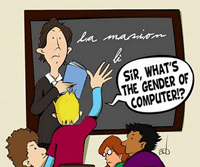
         This is funny trick that let you know the gender of your computer whether it is male or female. This trick work on mostly all windows operating system. So let get started.

How To Do ?

   1. Open Notepad and paste the following codes.
 CreateObject("SAPI.SpVoice").Speak"i love you"
   2. Save the file as gender.vbs
   3. Now, open the save file
   4. If you hear male voice then your computer is male and if you hear female voice then its female.

More Interesting Tricks

   My computer is male what about you ?

windows registry
Windows registry contains settings for low level operating system component as well as applications running on windows. In this tutorial i will teach you to enable registry editor disabled by the admin. So lets do it.

What Is Registry ?

Windows registry is hierarchical database that stores configuration setting and option on microsoft windows operating system.It contains settings for low level operating system component as well as applications running on windows.

Registry is also called as Brain of Windows which store all information in form of registry keys Technically known as DWORD or STRING or BINARY or MULTI_STRING values which stores data.

How To Enable Registry Editor Disabled By Admin ?

 1. Open Notepad and copy below codes.
 REGEDIT4
 [HKEY_CURRENT_USER\Software\Microsoft\Windows\CurrentVersion\Policies\System]
 "DisableRegistryTools"=dword:00000000
 2. Now save the file as anything.reg (.reg is must)
 3. Double click the save file.
 4. Done !!

Windows Edit You Would Like To Do 

              This is very good and interesting Visual Basic Script Trick which let your computer speaks whatever you type. There is no requirement of any software. Just follow below simple steps.

  • First open Notepad and copy below codes
     Dim message, sapi
      message=InputBox("What do you want me to say?","COOL HACKING TRICKS")
     Set sapi=CreateObject("sapi.spvoice")
     sapi.Speak message
  • Now save the notepad file as talk.vbs
  • Now close the notepad file and open it again.
  • Done !!!

  • ALT+- (ALT+hyphen) Displays the Multiple Document Interface (MDI) child window's System menu
  • ALT+ENTER View properties for the selected item
  • ALT+SPACEBAR Display the System menu for the active window
  • ALT+F4 Close the active item, or quit the active program
  • ALT+ESC Cycle through items in the order they were opened
  • ALT+Underlined letter Display the corresponding menu
  • ALT+TAB Switch between open items
  • BACKSPACE View the folder one level up in My Computer or Windows Explorer
  • CTRL+X Cut
  • CTRL+A Select all
  • CTRL+B Bold
  • CTRL+I Italics
  • CTRL+C Copy
  • CTRL+Z Undo
  • CTRL+O Open an item
  • CTRL+U Underline
  • CTRL+V Paste
  • CTRL while dragging Copy selected item
  • CTRL+F4 Close the active document
  • CTRL+SHIFT while dragging Create shortcut to selected iteM
  • CTRL+LEFT ARROW Move the insertion point to the beginning of the previous word
  • CTRL+DOWN ARROW Move the insertion point to the beginning of the next paragraph
  • CTRL+RIGHT ARROW Move the insertion point to the beginning of the next word
  • CTRL+UP ARROW Move the insertion point to the beginning of the previous paragraph
  • SHIFT+DELETE Delete selected item permanently without placing the item in the Recycle Bin
  • ESC Cancel the current task
  • F1 Displays Help
  • F2 Rename selected item
  • F3 Search for a file or folder
  • F4 Display the Address bar list in My Computer or Windows Explorer
  • F5 Refresh the active window
  • F6 Cycle through screen elements in a window or on the desktop
  • F10 Activate the menu bar in the active program
  • SHIFT+F10 Display the shortcut menu for the selected item
  • CTRL+ESC Display the Start menu
  • SHIFT+CTRL+ESC Launches Task Manager
  • SHIFT when you insert a CD Prevent the CD from automatically playing
  • WIN Display or hide the Start menu
  • WIN+BREAK Display the System Properties dialog box
  • WIN+D Minimizes all Windows and shows the Desktop
  • WIN+E Open Windows Explorer
  • WIN+F Search for a file or folder
  • WIN+F+CTRL Search for computers
  • WIN+L Locks the desktop
  • WIN+M Minimize or restore all windows
  • WIN+R Open the Run dialog box
  • WIN+TAB Switch between open items

       Windows Explorer Shortcuts:
  • ALT+SPACEBAR - Display the current window’s system menu
  • SHIFT+F10 - Display the item's context menu
  • CTRL+ESC - Display the Start menu
  • ALT+TAB - Switch to the window you last used
  • ALT+F4 - Close the current window or quit
  • CTRL+A - Select all items
  • CTRL+X - Cut selected item(s)
  • CTRL+C - Copy selected item(s)
  • CTRL+V - Paste item(s)
  • CTRL+Z - Undo last action
  • CTRL+(+) - Automatically resize the columns in the right hand pane
  • TAB - Move forward through options
  • ALT+RIGHT ARROW - Move forward to a previous view
  • ALT+LEFT ARROW - Move backward to a previous view
  • SHIFT+DELETE - Delete an item immediately
  • BACKSPACE - View the folder one level up
  • ALT+ENTER - View an item’s properties
  • F10 - Activate the menu bar in programs
  • F6 - Switch between left and right panes
  • F5 - Refresh window contents
  • F3 - Display Find application
  • F2 - Rename selected item

       Internet Explorer Shortcuts:
  • CTRL+A - Select all items on the current page
  • CTRL+D - Add the current page to your Favorites
  • CTRL+E - Open the Search bar
  • CTRL+F - Find on this page
  • CTRL+H - Open the History bar
  • CTRL+I - Open the Favorites bar
  • CTRL+N - Open a new window
  • CTRL+O - Go to a new location
  • CTRL+P - Print the current page or active frame
  • CTRL+S - Save the current page
  • CTRL+W - Close current browser window
  • CTRL+ENTER - Adds the http://www. (url) .com
  • SHIFT+CLICK - Open link in new window
  • BACKSPACE - Go to the previous page
  • ALT+HOME - Go to your Home page
  • HOME - Move to the beginning of a document
  • TAB - Move forward through items on a page
  • END - Move to the end of a document
  • ESC - Stop downloading a page
  • F11 - Toggle full-screen view
  • F5 - Refresh the current page
  • F4 - Display list of typed addresses
  • F6 - Change Address bar and page focus
  • F1 - Display Internet Explorer Help
  • ALT+RIGHT ARROW - Go to the next page
  • SHIFT+CTRL+TAB - Move back between frames
  • SHIFT+F10 - Display a shortcut menu for a link
  • SHIFT+TAB - Move back through the items on a page
  • CTRL+TAB - Move forward between frames
  • CTRL+C - Copy selected items to the clipboard
  • CTRL+V - Insert contents of the clipboard
  • ENTER - Activate a selected link
  • HOME - Move to the beginning of a document
  • END - Move to the end of a document